Integrating Umbraco v18 with Local LLMs via llama.cpp and Umbraco.AI
Updated 2026-08-09 to cover connecting through LLM Router, which resolves most of the issues below.
As the demand for AI-driven content management grows, many organizations are looking for ways to leverage Large Language Models (LLMs) while maintaining data privacy and reducing API costs. For those running Umbraco v18, utilizing the Umbraco.AI.OpenAI provider is an effective way to connect your CMS instance to a locally hosted llama.cpp server.
It is worth noting that while other options like the IM.Umbraco.AI.Local package exist, those are targeted at Umbraco v17 and have demonstrated significant stability issues with tool calling. Using the OpenAI provider in v18 offers a more robust path toward local integration.
While llama.cpp provides an OpenAI-compatible API, there are several configuration nuances you must navigate to ensure a seamless integration with the Umbraco Copilot and tool-calling features. There are two ways to get there: point Umbraco straight at a llama-server instance, or put LLM Router in front of it. Both paths are covered below, section by section — but the router removes enough of the rough edges, including the previous_response_id failure in Section 4, that it's the recommended route. The direct llama.cpp steps are kept for anyone not running a router in front of their server.
1. Model Visibility: The Alias Requirement
Umbraco’s AI provider implements specific filtering when retrieving available models from the API. To ensure your local model is listed and selectable within the Umbraco backoffice, the model name must begin with one of the following prefixes: gpt-, o1, o3, or chatgpt-.
Direct llama.cpp: achieve this without renaming your actual model file by passing the --alias parameter when starting the server.
llama-server -m gemma-4-it.gguf --alias "gpt-Gemma4"By assigning an alias like "gpt-Gemma4", Umbraco will recognize the model as a compatible OpenAI-style entity and display it in the dropdown menu.
Via LLM Router: there's no server flag to remember at all. The router reports its own model list through /v1/models using each preset's Name field directly as the model id — so naming the preset gpt-Gemma 4 E4B Q8 is enough, regardless of what the underlying GGUF file or llama-server alias is actually called.
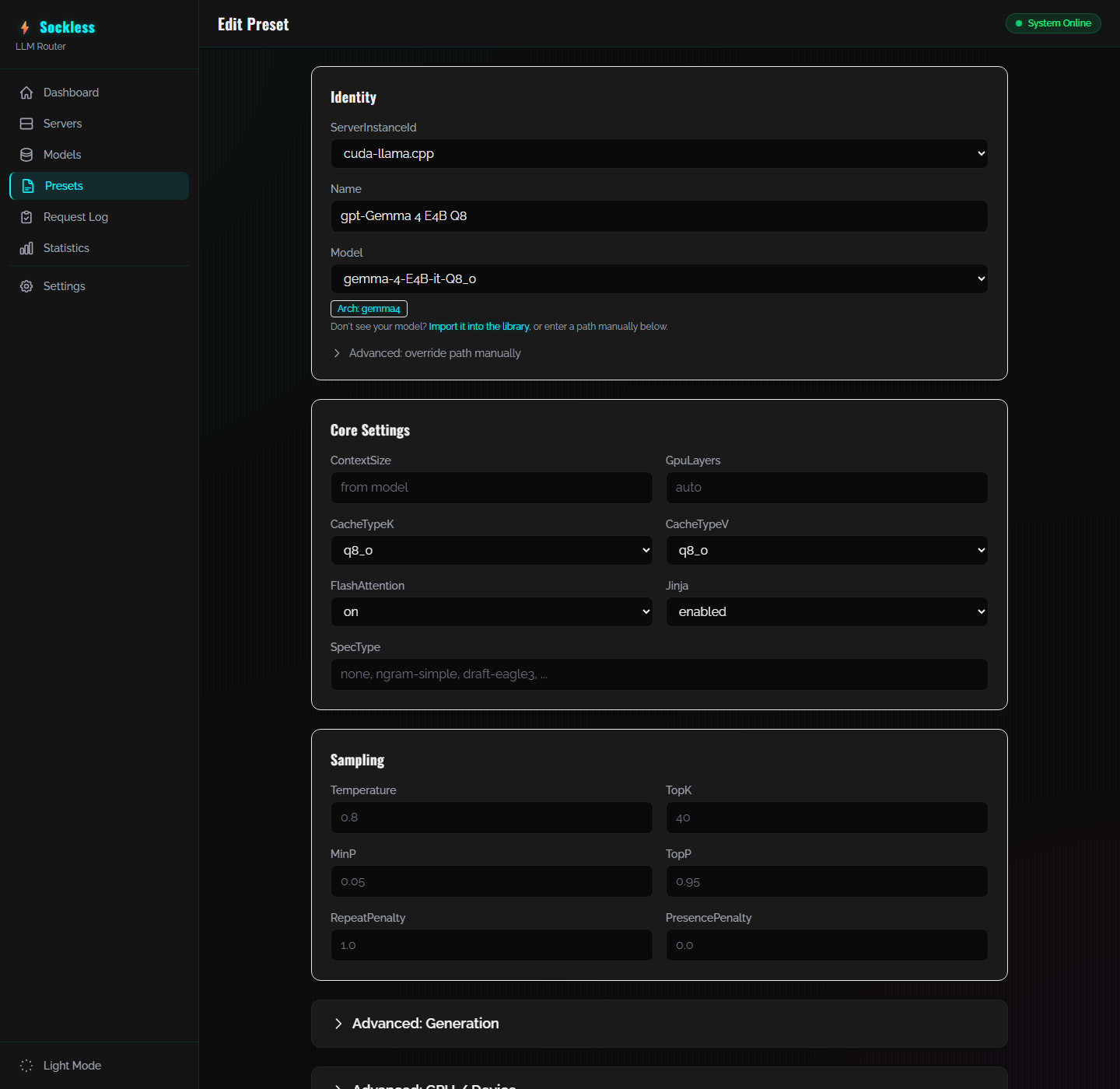
A working preset: Name starts with "gpt-" and Jinja is enabled — both fields covered in Sections 1 and 2.
2. Enabling Tool Support with Jinja
For the AI to interact with your CMS—such as reading page content or creating new nodes—it requires tool support (function calling), which depends on Jinja templating being enabled on the inference server.
Direct llama.cpp: include the --jinja parameter in your startup command. This allows the server to handle the templates necessary for structured tool calls.
Via LLM Router: flip the preset's Jinja setting to enabled, as shown in the screenshot above. The router translates that into --jinja when it launches the underlying llama-server process, so it's one dropdown instead of a startup flag to remember per server.
3. Choosing the Right Model: Gemma 4 vs. Qwen
Not all models handle JSON schema conversion identically, and this applies whichever path you're using — the underlying inference engine is the same either way. During testing, it was found that Qwen-based models frequently trigger a 400 Bad Request error when attempting to generate parsers for templates:
{"error":{"code":400,"message":"Unable to generate parser for this template... JSON schema conversion failed..."}}
To avoid these stability issues, we highly recommend using Gemma 4 models. Gemma 4 has shown significantly better compatibility with the Umbraco AI provider's expectations for structured output and tool integration.
4. Handling the previous_response_id Limitation
Currently, there is a discrepancy between how the Umbraco Copilot manages conversation history and how llama.cpp processes requests. After a successful tool call, Umbraco may attempt to reference a previous_response_id in the subsequent request.
Because llama.cpp does not currently support this specific parameter, you will encounter an error in the Copilot chat interface: "Error: The AI service rejected the request." If you check your server logs, you will see the underlying cause:
{"error":{"code":400,"message":"llama.cpp does not support 'previous_response_id'."}}
Direct llama.cpp: this is a known protocol mismatch, not a failure of your local server. Click "Retry" on the failed request to clear the problematic reference and continue the conversation. If your interaction involved multiple sequential tool calls, you may need to hit retry a few times to clear the queue.
Via LLM Router: this doesn't come up at all. The router implements its own stateful /v1/responses endpoint — it accepts and tracks previous_response_id, reconstructs the conversation history, and forwards a plain Chat Completions request to the underlying llama.cpp backend. From Umbraco's point of view it's talking to a fully OpenAI-compliant server, and the Copilot chat interface has been running end-to-end without a single retry since switching.
Summary Checklist for Deployment
Requirement | Direct llama.cpp | Via LLM Router (recommended) |
|---|---|---|
Version | Umbraco v18 | Umbraco v18 |
Model Visibility |
| Preset Name = |
Tool Integration |
| Preset Jinja = enabled |
Model Choice | Use Gemma 4 | Use Gemma 4 |
previous_response_id Error | Click Retry to clear it | Doesn't happen — handled natively |