Intel's Arc Pro B70 has 32 GB of VRAM. That's enough to run a dense 27B model on one card, with a six-figure context window and a speculative drafter loaded next to it. The hard part on Windows has been the software. You need an inference engine that actually uses the card's XPU backend, and a way to switch between engines without editing launch scripts.
This article shows how to run Qwen 3.8 27B on the B70 with the TensorFold engine on XPU, managed by LLM Router. It then benchmarks that setup against the same model on llama.cpp's SYCL backend, through the same router endpoint. In this setup, TensorFold generated tokens about 2.3× faster and processed prompts about 1.7× faster.
The setup
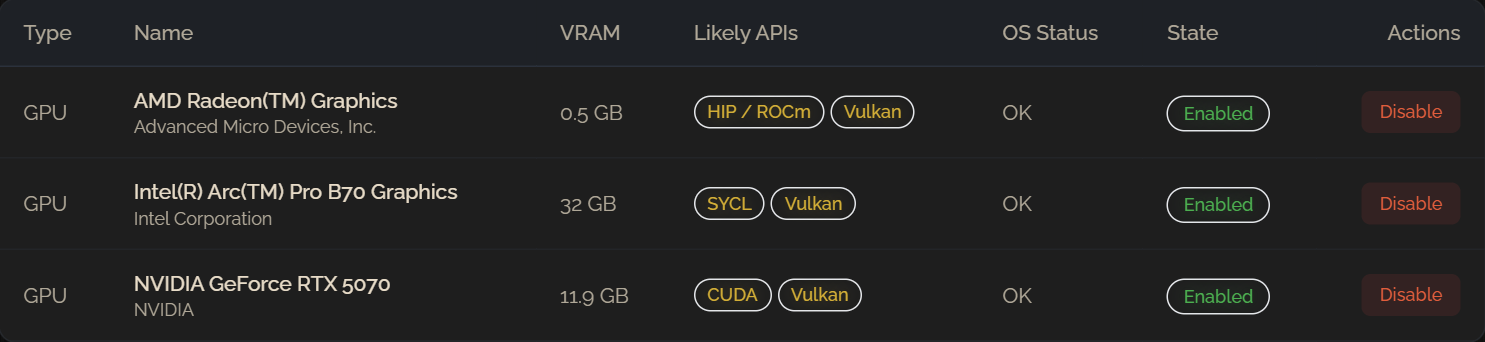
GPU: Intel Arc Pro B70 Graphics, 32 GB. The machine also has an RTX 5070, but every number below comes from the B70.
OS: Windows 11 Pro, with Docker Desktop on the WSL 2 engine for TensorFold
Router: LLM Router with the routing API on
http://localhost:5054/v1TensorFold model: SergiioB/Qwen3.8-27B-GPTQ-Int4-sym-G128-MTP-BF16 (GPTQ 4-bit, group size 128)
llama.cpp model: unsloth/Qwen3.8-27B-GGUF,
UD-Q6_K
The router's Devices page picks up the B70 and lists SYCL and Vulkan as its likely compute APIs. That's a quick way to confirm Windows and the oneAPI runtime can see the card before you set anything else up.
Step 1: Build the TensorFold XPU engine
TensorFold doesn't publish a Windows release, and its Intel engine only runs on Linux. On Windows, LLM Router runs it in Docker Desktop and reaches the GPU through WSL 2.
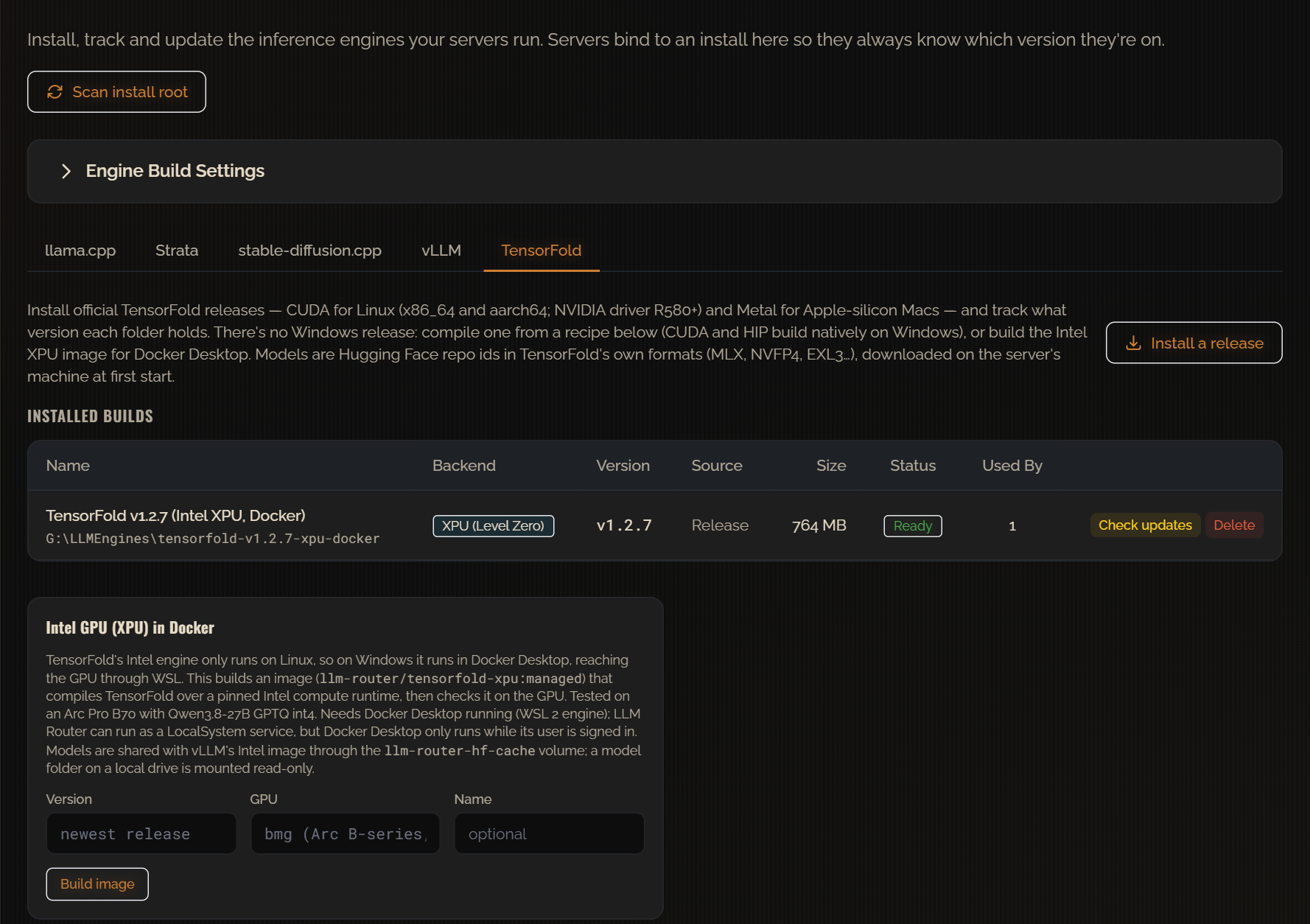
Open Engines, switch to the TensorFold tab and find the Intel GPU (XPU) in Docker card. Choose bmg (Arc B-series) as the GPU and click Build image. The router builds an image (llm-router/tensorfold-xpu:managed) that compiles TensorFold over a pinned Intel compute runtime, then checks the result on the GPU. When it finishes, the install appears under Installed builds with the XPU (Level Zero) backend. Here that's TensorFold v1.2.7.
Docker Desktop must be running with the WSL 2 engine. Docker Desktop only runs while its user is signed in, so if LLM Router runs as a Windows service, the TensorFold server can't start while that user is signed out.
Step 2: Create the server
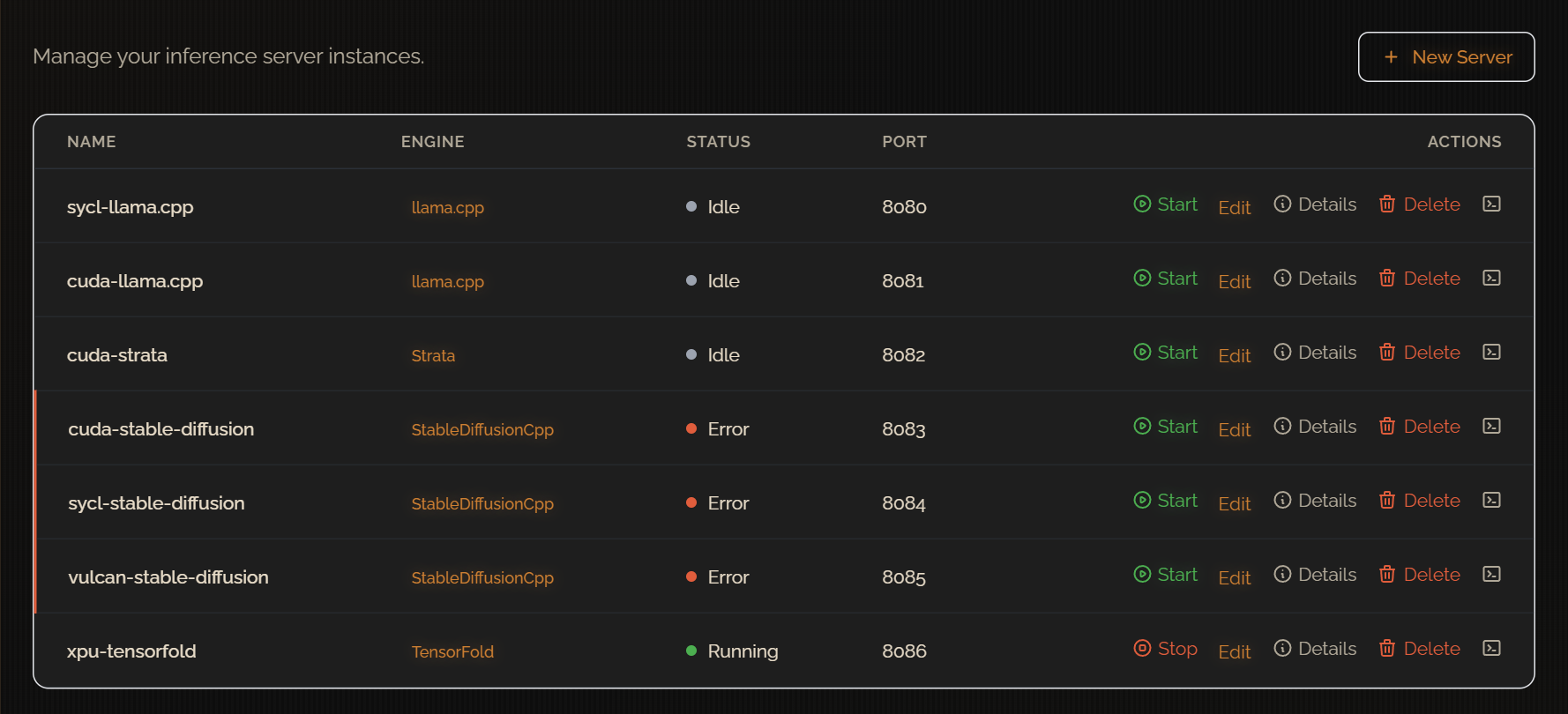
Under Servers → New Server, create a server with the TensorFold engine and bind it to the install from step 1. In this setup it's called xpu-tensorfold and listens on port 8086. It sits next to a sycl-llama.cpp server on port 8080 that targets the same B70.
Both servers share a card with 32 GB of VRAM, so only one of them can be loaded at a time. LLM Router handles this for you: when a request names a preset whose server isn't running, the router starts it. If you put both servers in a memory group, the router also stops the least-recently-used idle server first to make room.
Step 3: Download the model from Hugging Face
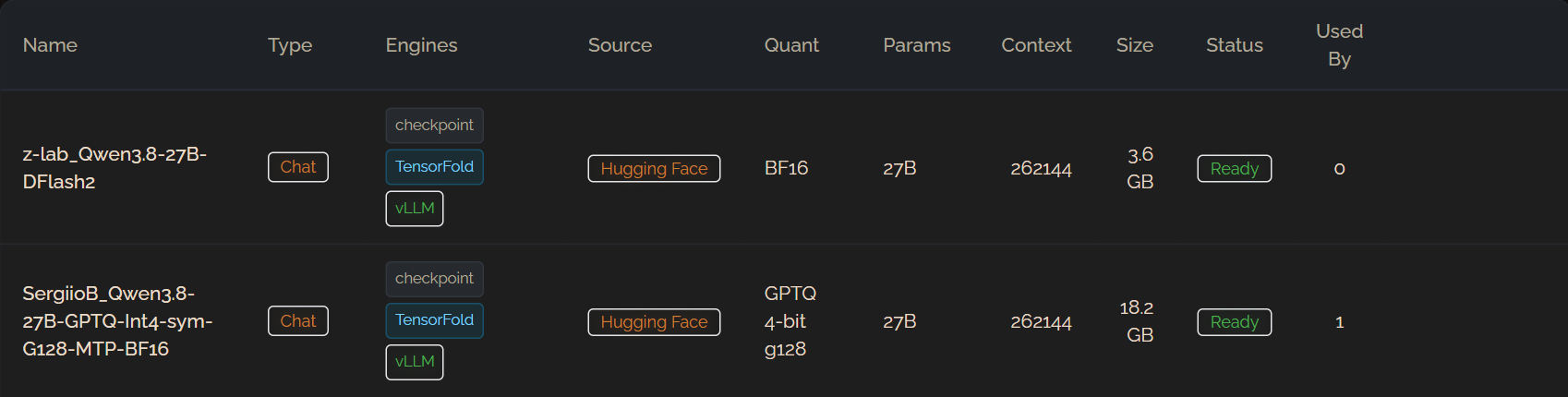
You don't need to download anything by hand. On the router's Models page, click Browse Hugging Face, search for SergiioB/Qwen3.8-27B-GPTQ-Int4-sym-G128-MTP-BF16 and download it into the model library. The page shows progress while it downloads. Then do the same for the drafter, z-lab/Qwen3.8-27B-DFlash2. The drafter is a DFlash2 checkpoint for speculative decoding, and it's a big part of the decode speeds below.
The library recognises both as checkpoints for TensorFold and vLLM, so you can choose them straight from the preset editor. When the server starts, the Docker container mounts their folders read-only. Together they take about 22 GB on disk: 18.2 GB for the model and 3.6 GB for the drafter. If you set a Hugging Face token in the Models page settings, it's also passed on for gated checkpoints.
Step 4: Create the preset
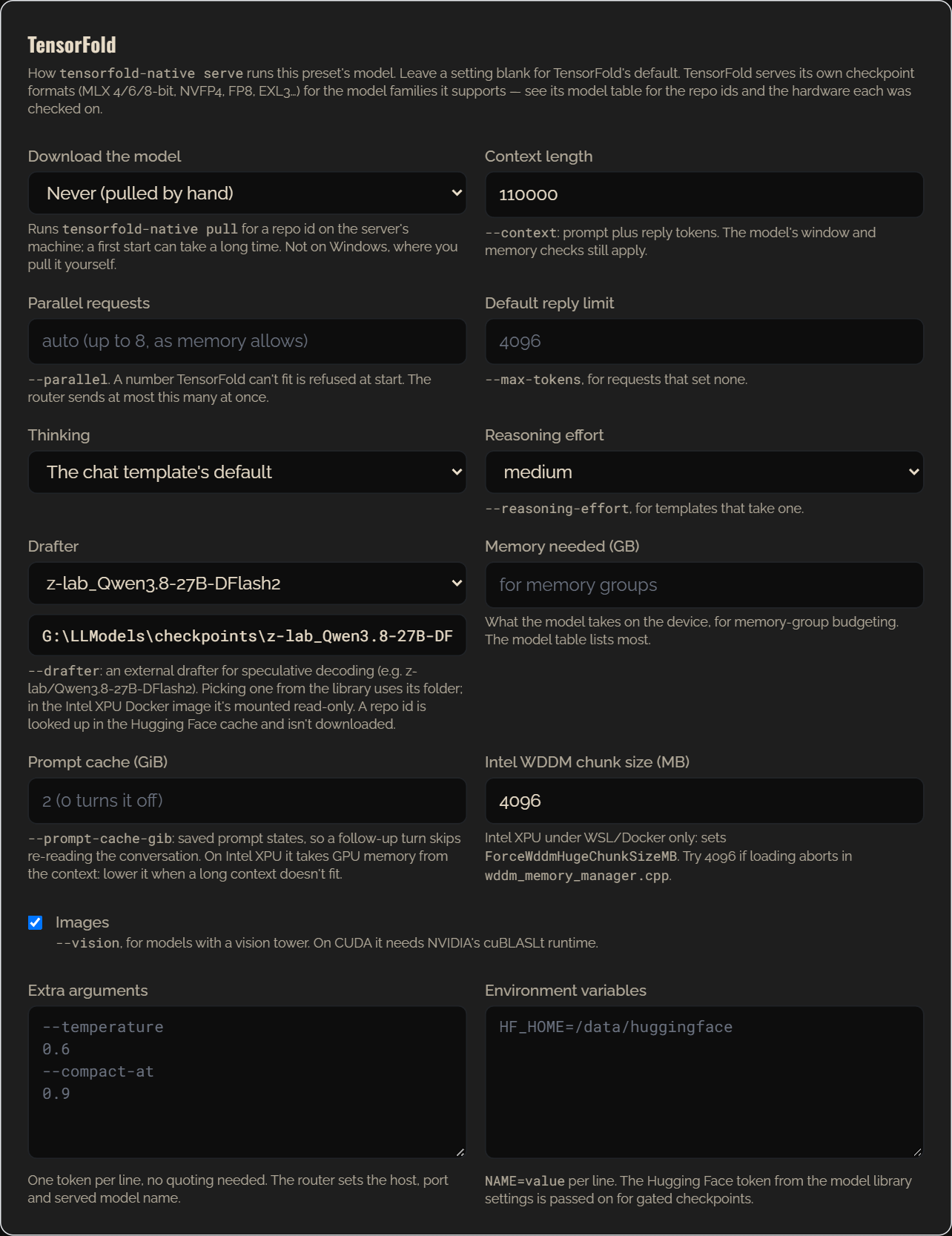
Under Presets → New Preset, create tensorfold-qwen3.8-27b on the xpu-tensorfold server. Choose the model from the library, then fill in the TensorFold section:
Setting | Value |
|---|---|
Download the model | Never. The router's model library has already downloaded it, and TensorFold's own |
Context length | 110,000 tokens |
Reasoning effort | medium |
Drafter |
|
Intel WDDM chunk size | 4096 MB. This sets |
Images | Enabled ( |
Prompt cache | Left at the 2 GiB default |
With these settings, the 4-bit 27B model, a 110k-token context, the speculative drafter and vision support all fit on the one B70. The prompt cache uses GPU memory from the context, so lower it if a long context doesn't fit.
Step 5: Call it through the router
Clients only ever talk to the router. To use a preset, put its name in the model field. If the preset isn't loaded yet, the router starts the right server first:
curl http://localhost:5054/v1/chat/completions \
  -H "Content-Type: application/json" \
  -d '{
    "model": "tensorfold-qwen3.8-27b",
    "messages": [{"role": "user", "content": "Explain how a GPU executes a matrix multiplication."}],
    "stream": true
  }'
The router exposes the same preset through its Claude-compatible (/v1/messages) and Ollama-compatible (/api/chat) endpoints. Tools such as GitHub Copilot in Visual Studio can use the B70 with no other changes.
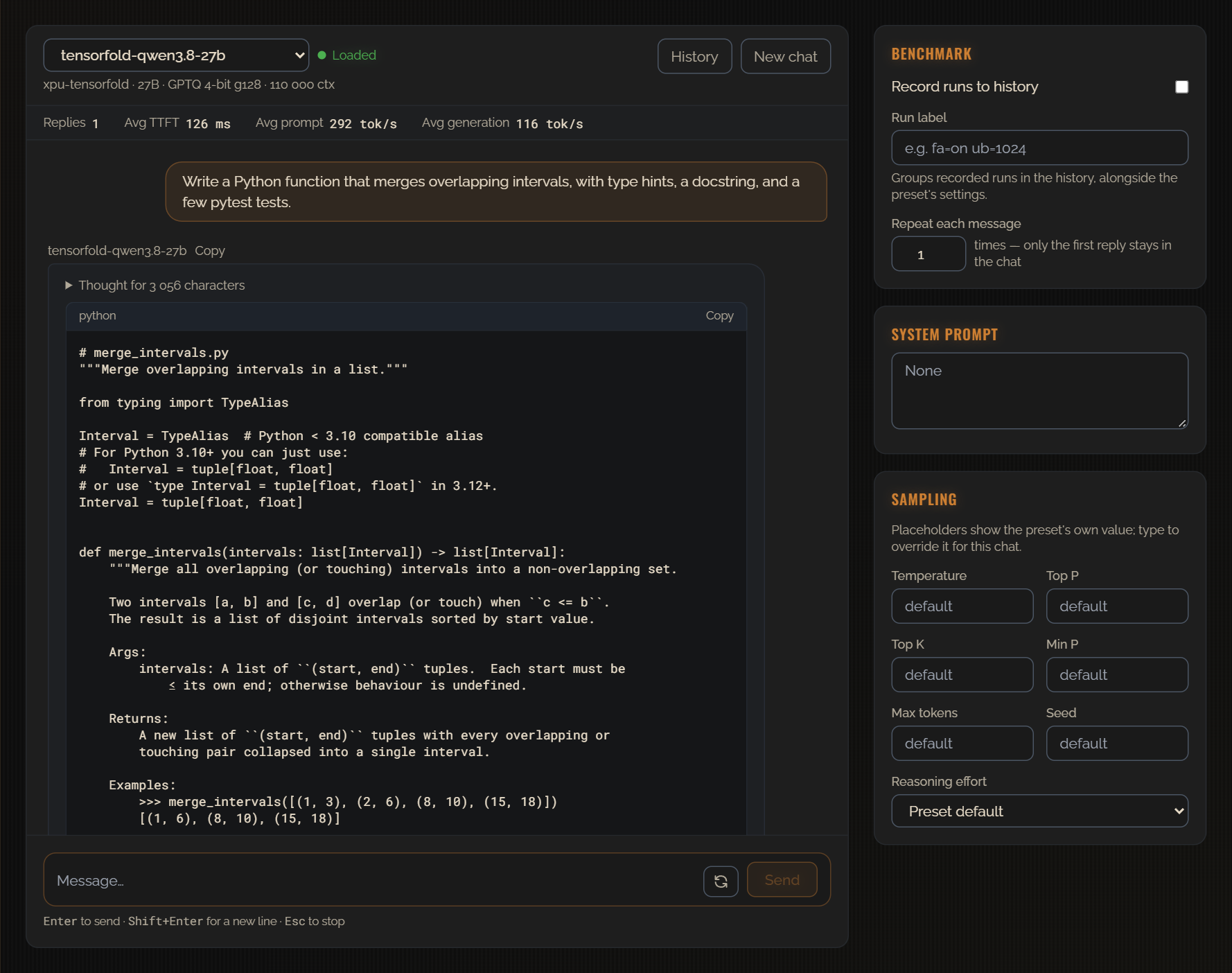
For a quick test without writing any code, open the Playground, pick the preset and run the built-in Code prompt. Each reply shows its time to first token and its prompt and generation speeds.
Benchmark: TensorFold XPU vs. llama.cpp SYCL on the B70
For comparison, the Qwen3.8-27B-Q6 preset on the sycl-llama.cpp server runs the unsloth UD-Q6_K GGUF on the same card. Its settings were 128k context, all layers on the GPU, flash attention on, a q8_0 KV cache, MTP speculative decoding (draft-mtp, up to 3 draft tokens), the F16 multimodal projector, and reasoning effort medium.
Method
Every request went through the router at
http://localhost:5054/v1/chat/completionswith streaming on and temperature 0.6.Requests ran one at a time, with no concurrency.
Each test ran three times after a warm-up request. The tables show the median.
Decode speed was measured on the client, from the first streamed token to the end of the response. It includes reasoning tokens, so it's the speed you actually see.
For the cold prefill tests, each prompt started with a unique ID so neither engine could reuse its prompt cache.
Only one server was loaded at a time. The router swapped them on the B70 between runs.
Token generation
Test | TensorFold XPU | llama.cpp SYCL | Difference |
|---|---|---|---|
Short chat (≈768 tokens out) | 89.8 tok/s | 39.8 tok/s | 2.25× |
Code generation (1,536 tokens out) | 119.7 tok/s | 50.8 tok/s | 2.35× |
Summary of an 8k-token prompt (512 tokens out) | 56.9 tok/s | 44.6 tok/s | 1.27× |
Summary of a 16k-token prompt (128 tokens out) | 37.0 tok/s | 44.0 tok/s | 0.84× |
On short contexts, TensorFold is much faster. Code generation reached about 120 tokens per second from a dense 27B model on one workstation card, and the 1,536-token code answer finished in 12.9 s, compared with 30.4 s on llama.cpp. Code is predictable, so the drafter's guesses are accepted more often and speculative decoding pays off the most.
The gap narrows as the context grows. At 16k tokens, llama.cpp's decode is slightly faster: it barely slows down as the context fills, while TensorFold drops from about 120 tok/s to under 40.
Prompt processing (cold prefill)
Prompt size | TensorFold XPU | llama.cpp SYCL | Difference |
|---|---|---|---|
8k tokens | 1,606 tok/s (TTFT 5.0 s) | 920 tok/s (TTFT 8.8 s) | 1.75× |
16k tokens | 1,507 tok/s (TTFT 10.7 s) | 893 tok/s (TTFT 18.1 s) | 1.69× |
TensorFold processed prompts about 70% faster at both sizes. That matters most for agents and RAG, where every turn sends thousands of tokens of context. When the prompt was already cached, both engines took about 0.16 s to the first token on the 8k prompt, so repeated prompts are fast on either engine.
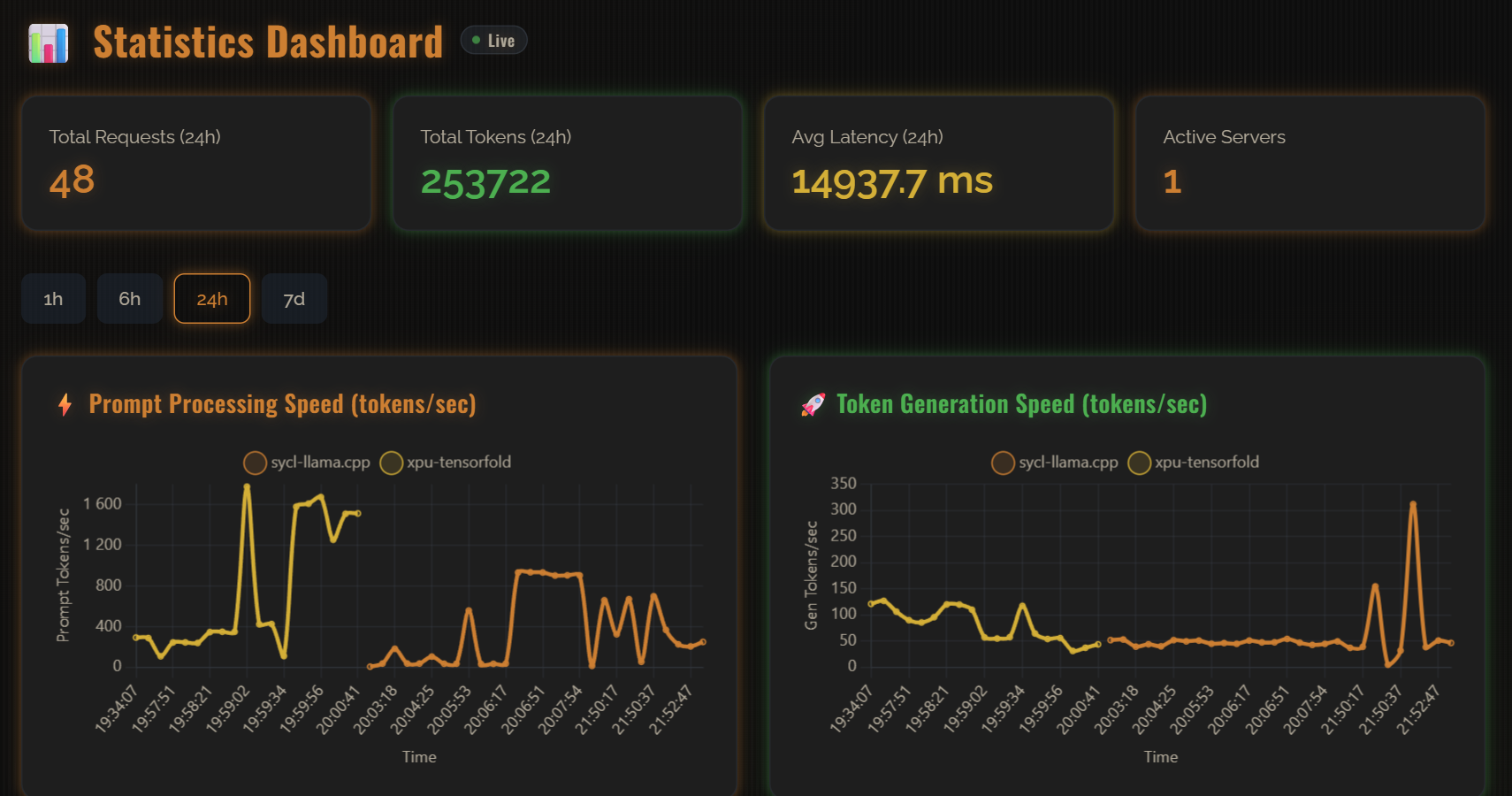
You don't need your own script to watch this. The router's Statistics page charted both benchmark sessions as they ran.
Load time
TensorFold XPU | llama.cpp SYCL | |
|---|---|---|
Cold start: first request until the server answers | ≈3 min 9 s | ≈1 min 50 s |
llama.cpp loads faster, and TensorFold also has to start its Docker container. With LLM Router that's a one-off cost: the first request waits for the engine to load, and every request after that goes straight to the loaded server.
A fair caveat
This was an experiment to show what's possible on a single B70 card. It isn't a strict apples-to-apples comparison of engines or models. Each preset ran the way it's set up on this machine: the TensorFold preset uses a 4-bit GPTQ model with a DFlash2 drafter, and the llama.cpp preset uses a 6-bit Q6_K GGUF with MTP drafting. The Q6_K model moves more data per token and probably keeps a little more quality, so some of the decode gap comes from the smaller weights and the drafter. Read the numbers as what one B70 can deliver in practice, not as a ranking of the engines.
You can repeat any of these runs in the router's Playground with Record runs turned on, and compare them on the Run History page.
Takeaways
The B70 can serve a dense 27B model locally. With 32 GB of VRAM it holds a 4-bit Qwen 3.8 27B with a 110k context, a drafter and vision support on one card. Interactive work ran at 90–120 tok/s.
TensorFold on XPU was the faster engine on this card for short and medium contexts: about 2.3× faster generation and about 1.7× faster prompt processing than llama.cpp's SYCL backend.
llama.cpp still has its strengths. It runs natively on Windows without Docker, loads faster and holds its decode speed better at long contexts.
The router lets you switch between them. Both presets sit behind the same
http://localhost:5054/v1endpoint, and choosing between them only changes themodelfield. LLM Router manages which one is loaded in the B70's VRAM.
To try it yourself, Windows builds and the full feature list are on the LLM Router project page, and the source is on GitHub.